
Clicking the bookmark ribbon icon on a post will save the post to your bookmark section. You can use your bookmarks to mark stories you want to read later.
Viewing, adding, removing bookmarks
View bookmarks
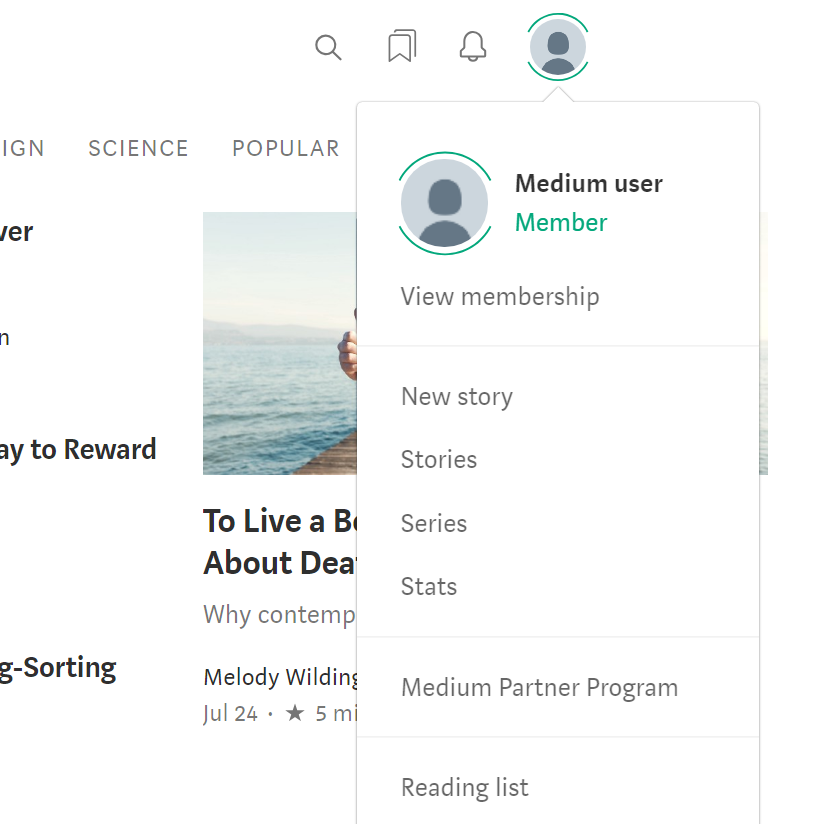
To open your bookmarks, click the bookmark ribbon in the top-right corner of the page or click on your avatar image and choose Reading list from the menu.
If you're not a Medium member, click on your avatar in the top-right corner and choose Bookmarks from the menu.
Add a bookmark
Click the bookmark ribbon icon underneath a post or on the left side to bookmark it.

Remove a bookmark
Click the bookmark icon again to remove the bookmark.
View bookmarks
To open your bookmarks, click the bookmark ribbon from the bottom menu.
Add a bookmark
Tap the bookmark icon to bookmark a story.
Remove a bookmark
Tap the bookmark icon again to remove the bookmark.
View bookmarks
To open your bookmarks, open the drawer menu and click Bookmarks.
Add a bookmark
Tap the bookmark icon to bookmark a story.
Remove a bookmark
Tap the bookmark icon again to remove the bookmark.
Reading list (Members only)
If you're a Medium member, you have access to an improved bookmark section called reading list. In addition to bookmarking stories, the reading list allows you to archive your bookmarks in a separate tab, as well as search your saved stories when accessed in a web browser.
To archive a bookmark, click the bookmark icon again. To remove the bookmark entirely, click the bookmark icon again until the icon changes to default.
Offline mode (Members only)
All your bookmarked stories are automatically saved on your iOS or Android app for offline reading.
Psst! Interested in becoming a Medium member? Check out this article to learn more.