
Your profile on Medium consists of information publicly linked to your account.
Viewing and editing your profile
View your profile page
Click on your avatar in the top-right corner of the page and click Profile.
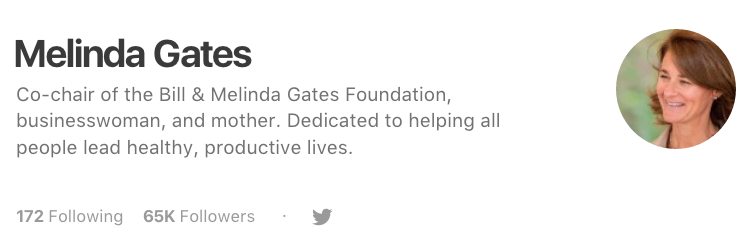
Your profile includes:
- Profile name
- Short bio
- Profile image
- Linked social media accounts
- Lists of people you follow and who follow you
- Publications you edit
- Top Writer badges
- Recent posts you've written (plus an optional Featured post)
- Articles you've highlighted, applauded or responded to
Edit profile
On your profile page, click Edit profile to edit your profile. From here, you can:
- Change your display name to appear on your public profile of up to 25 characters.
- Enter a bio of up to 160 characters. It may include a link.
- Change your profile image by clicking the camera icon on your current avatar and uploading an image from your device.
When you're done with making changes, click Save.
Tip! To change your username, which is visible in your profile URL, see Change username.
View your profile page
Go to the You tab and tap Profile to view your profile.
Your profile includes:
- Profile name
- Short bio
- Profile image
- Linked social media accounts
- Lists of people you follow and who follow you
- Publications you edit
- Top Writer badges
- Recent posts you've written (plus an optional Featured post)
- Articles you've highlighted, applauded or responded to
Edit profile
On your profile page, tap Edit to edit your profile. From here, you can:
- Change your display name to appear on your public profile of up to 25 characters.
- Enter a bio of up to 160 characters. It may include a link.
- Change your profile image by tapping Edit profile picture and uploading an image from your device or straight from the camera.
When you're done with making changes, tap Save.
Tip! To change your username, which is visible in your profile URL, see Change username.
View your profile page
Open the drawer menu and in the top-left corner of the homepage and tap See profile.
Your profile includes:
- Profile name
- Short bio
- Profile image
- Linked social media accounts
- Lists of people you follow and who follow you
- Publications you edit
- Top Writer badges
- Recent posts you've written (plus an optional Featured post)
- Articles you've highlighted, applauded or responded to
Edit profile
On your profile page, tap the button and tap Edit to edit your profile. From here, you can:
- Change your display name to appear on your public profile of up to 25 characters.
- Enter a bio of up to 160 characters. It may include a link.
- Change your profile image by clicking Choose an image and uploading an image from your device or straight from the camera.
When you're done with making changes, tap Save.
Tip! To change your username, which is visible in your profile URL, see Change username.
Feature a story on your profile
You can feature one story at the top of your profile page. That story will show up in a separate section before all your latest articles.
- Go to your profile page.
- Click the arrow down button underneath the post you want to feature.
- Click Feature at the top of your profile.
If you don't set a featured story yourself, your most recent Partner Program story (if you've published any) will be automatically moved to the featured slot. You can replace it at any time by featuring any other story of your choice.
Common questions
If you go to your profile page, your profile URL will show up in your browser's address bar. If you're on iOS or Android, tap the Share button located on your profile page to copy your profile page URL.