When editing a file, you can choose to move it anywhere within your repository, even if the directory doesn't exist.
- Browse to the file you want, and click the Edit button at the top of the file to open the file editor.
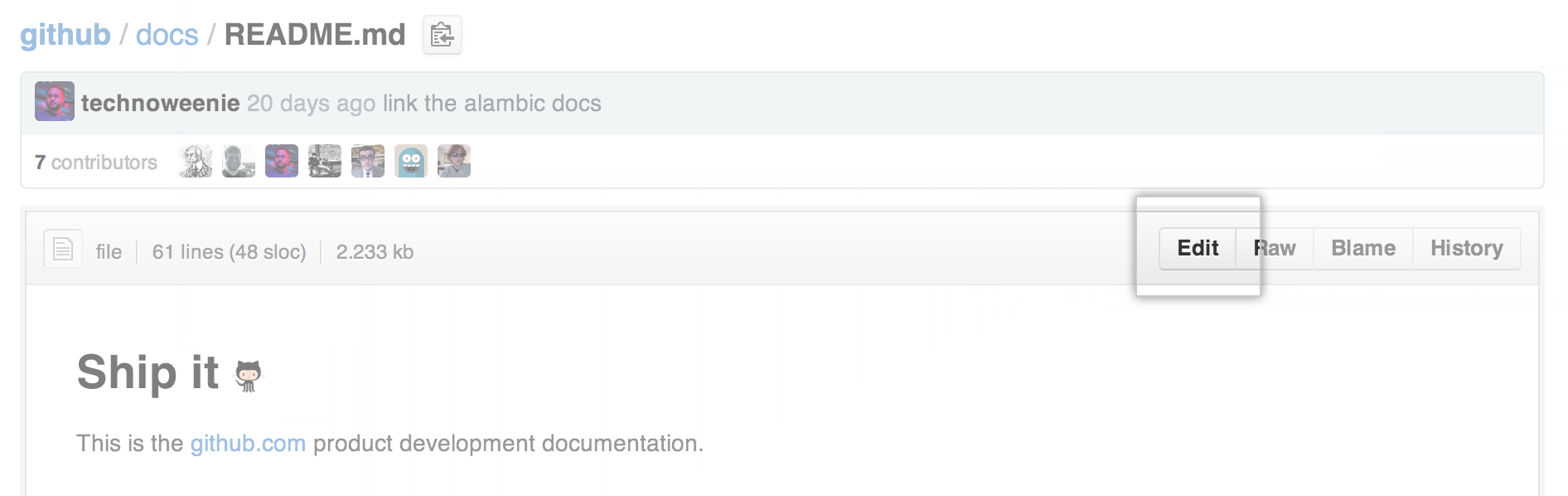
- Use the filename field containing the current name of your file to move the file
- To move the file down into a subfolder, simply type the name of the folder you want, followed by
/. Your new folder name becomes a new item in the navigation breadcrumbs. - To move the file into a directory above the file's current location, place your cursor at the beginning of the filename field, then either type
../to jump up one full directory level, or type thebackspacekey to edit the parent folder's name.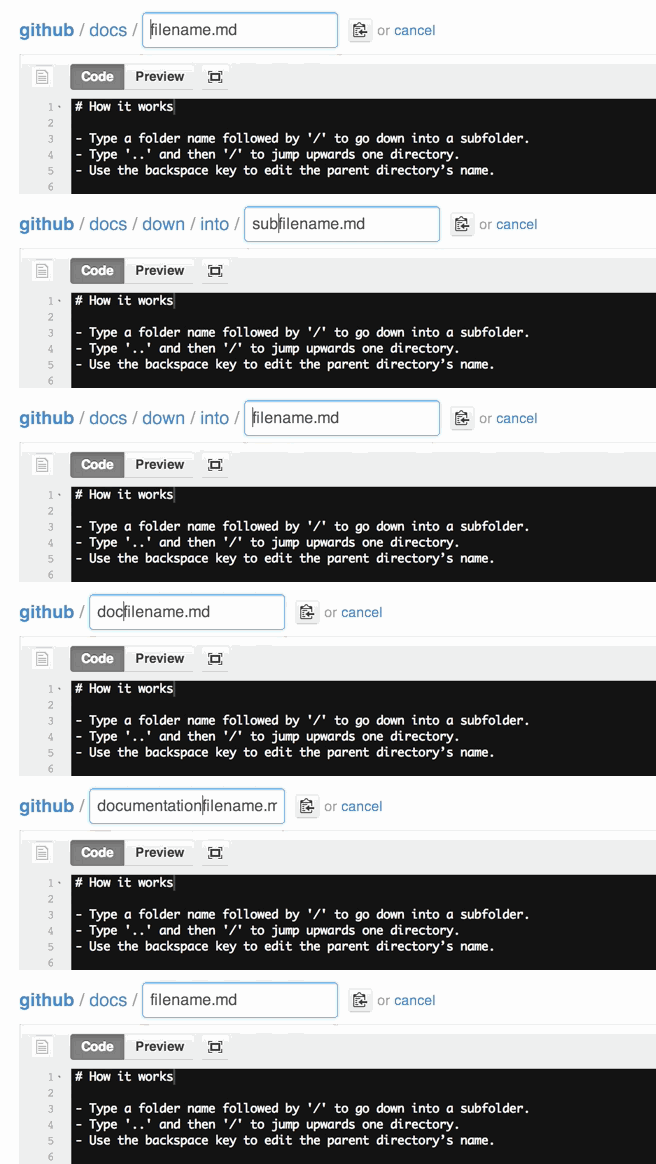
- To move the file down into a subfolder, simply type the name of the folder you want, followed by
- Enter a commit message describing your change, and press the Commit button to commit the change to the repository.
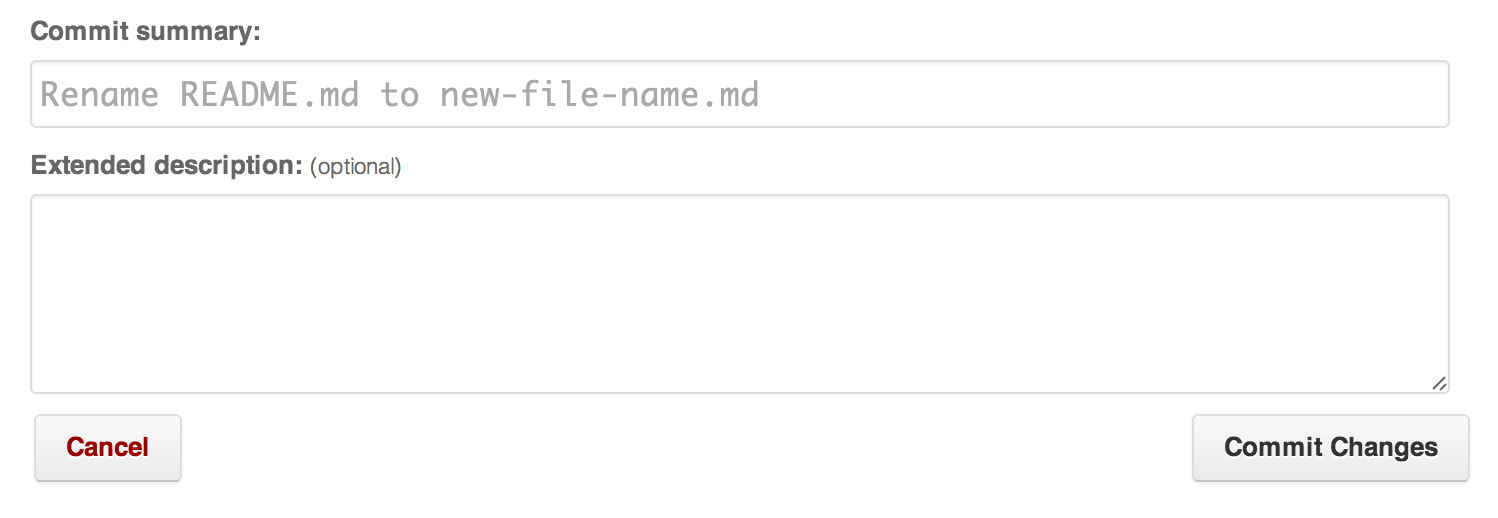
In addition to changing the file location, you can also update the contents of your file and give it a new filename in the same commit.
Tip: If you try to move a file in a repository that you don’t have access to, it will fork the project to your user account and help you send a pull request to the original repository after you commit your change.
