Dialogs Overview
Dialogs provide a simple, consistent interface to provide social functionality to your users. Dialogs do not require any additional permissions because they require user interaction. Dialogs can be used by your application in every context: within a Canvas Page, in a Page Tab, in a website or mobile web app, and within native iOS and native Android applications.
There are currently 7 Dialogs available for you to use:
- The Feed Dialog allows a user to post a story to their Timeline and to their friends' News Feeds
- The OAuth Dialog allows a user to authorize an application as part of an authentication flow.
- The Add Page Tab Dialog allows a user to add an application to a Facebook Page which they administer.
- The Friends Dialog allows a user to send a friend request to another user.
- The Pay Dialog allows a user to make a purchase using Facebook Credits.
- The Requests Dialog allows a user to send a request to one or more of their friends
- The Send Dialog allows a user to send a Facebook Message to one or more of their friends.
You can integrate Dialogs into your application by constructing the URLs documented below, or by using a helper method in one of the Facebook SDKs:
- JavaScript SDK using the FB.ui method.
- iOS SDK using the dialog method.
- Android SDK using the dialog method.
Invoking a Dialog directly with a URL
If you're not using one of the Facebook SDK's, you can invoke a Dialog by redirecting the user's browser to a URL. Every dialog has a method name and parameters. The URL to a dialog always starts with
https://www.facebook.com/dialog/
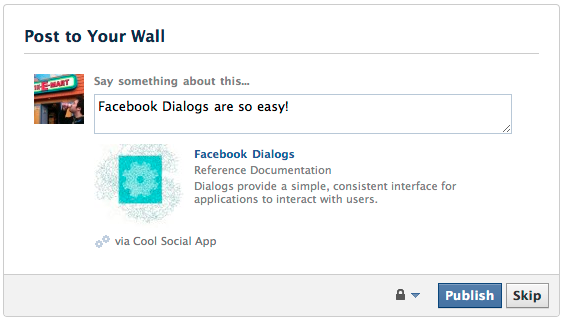
followed by the name of the dialog and parameters. For example, to ask a user to post a story to their Wall, send them to the Feed Dialog with required parameters:
https://www.facebook.com/dialog/feed?
    app_id=YOUR_APP_ID&
    redirect_uri=YOUR_REDIRECT_URI
Because Dialogs enable simple social interactions, the user must be logged into Facebook to see a dialog. If the user is not already logged in, Facebook will prompt them to login before showing the the Dialog you invoked.
Common Dialog Parameters
All Dialogs share a few common parameters:
| Name | Required? | Description |
app_id |
Yes | Your App ID as shows in your app's settings. |
redirect_uri |
Yes | The URL to redirect to after the user clicks a button on the Dialog. |
display |
No. Default is page |
Display mode in which to render the Dialog. Can be page, popup, iframe, or touch. If you specify iframe, you must have a valid access_token. To get a valid access_token, please see the Authentication guide |
show_error |
No | If this is set to true, the error code and error description will be displayed in the event of an error. |
Display Modes
Platform Dialogs are all built to seamlessly run in a variety of display contexts on both the web and mobile web. If you're invoking a Dialog using the JS, iOS or Android SDKs, the display mode will be automatically chosen for you based on the platform and the device being used by the user. However, you can force a particular display mode by setting the display parameter to one of the following values:
page: By default, dialogs run in full-page mode with a Facebook header and footer. This is appropriate for apps that do a full-page redirect in a normal desktop/laptop web browser.popup: For use in a browser popup no bigger than 400px by 580px. Use this display type to maintain context for the user without needing to perform a full-page redirect.touch: For use on smartphones, mobile devices and small tablets (such as those with screens under 7 inches).iframe: For use by apps when running inside an iframe within a Canvas page on Facebook. Displays the dialog within a lightbox-style overlay. Because of the risk of clickjacking, this is only allowed for some certain dialogs, and requires you to pass a validaccess_token. This mode is not supported by the OAuth Dialog.
Dialogs
The Add Page Tab Dialog prompts the user to add an app to a Facebook Page that the user admins. This does not require any extended permissions.
Prompt the user to publish an individual story to a profile's feed
Prompt the user to add a friend.
Prompt the user to authorize and grant your app permissions
Prompt a payment
Requests Dialog
Prompt the user to send a message to a friend, group or email address
Updated about 2 months ago