Inline suggestions from GitHub Copilot in VS Code
Use inline suggestions when you want to keep writing code yourself, with help completing code, comments, or tests and making related edits. GitHub Copilot suggests changes in the editor as you type. You review each suggestion and decide whether to accept it, accept part of it, or keep typing.
Copilot uses your existing code as context for two kinds of suggestions:
-
Ghost text suggestions: Dimmed text at your cursor suggests how to complete the code you're writing.
-
Next edit suggestions: Based on your recent edits, Copilot suggests another change and where to make it.
You don't need to start a chat for inline suggestions. You can also combine them with chat and agents as your task changes.
Prerequisites
- Visual Studio Code installed on your machine. Follow these steps to set up VS Code.
- Access to a GitHub Copilot subscription. Follow these steps to set up GitHub Copilot. You can set up Copilot Free to get a monthly allowance of inline suggestions and AI credits.
Ghost text suggestions
Getting your first suggestions
Copilot offers dimmed ghost text suggestions as you type: sometimes the completion of the current line, sometimes a whole new block of code.
-
Open a file in a programming language of your choice and start typing. You should see inline suggestions from Copilot as you type.
The following example shows how Copilot suggests an implementation of the
calculateDaysBetweenDatesJavaScript function by using dimmed ghost text: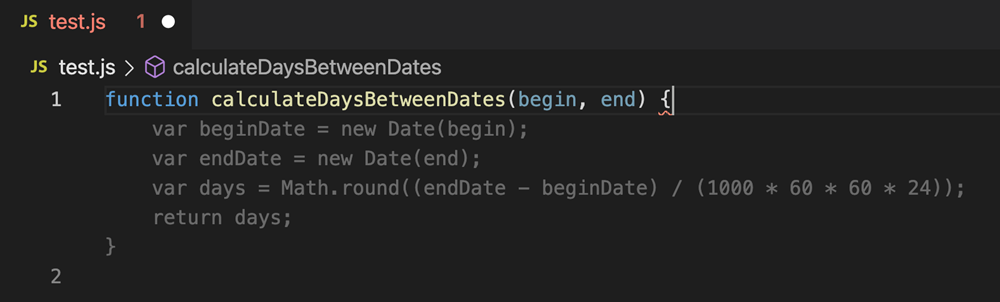
-
Review the suggested code. Press Tab to accept it, or Escape to dismiss it.
To accept only part of a suggestion:
- Use ⌘→ (Windows, Linux Ctrl+Right) to accept the next word.
- Run Accept Next Line Of Inline Suggestion from the Command Palette (⇧⌘P (Windows, Linux Ctrl+Shift+P)) to accept the next line.
-
Continue editing and check that the accepted code does what you intended. Suggestions can be incorrect, so run the relevant tests before relying on the result.
Alternative suggestions
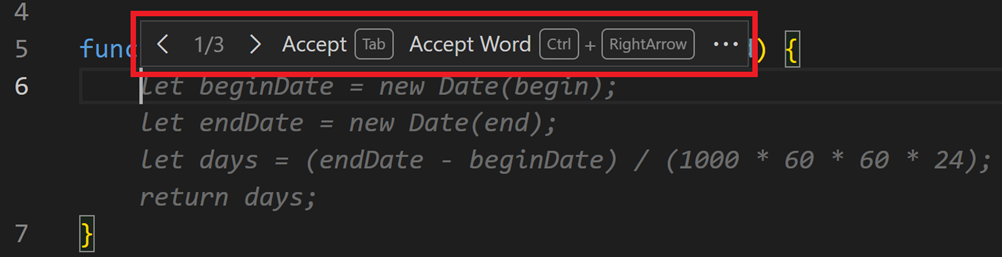
For a given input, Copilot might offer more than one suggestion. Hover over the suggestion to see the toolbar, then use its next and previous controls to compare alternatives.
Generate suggestions from code comments
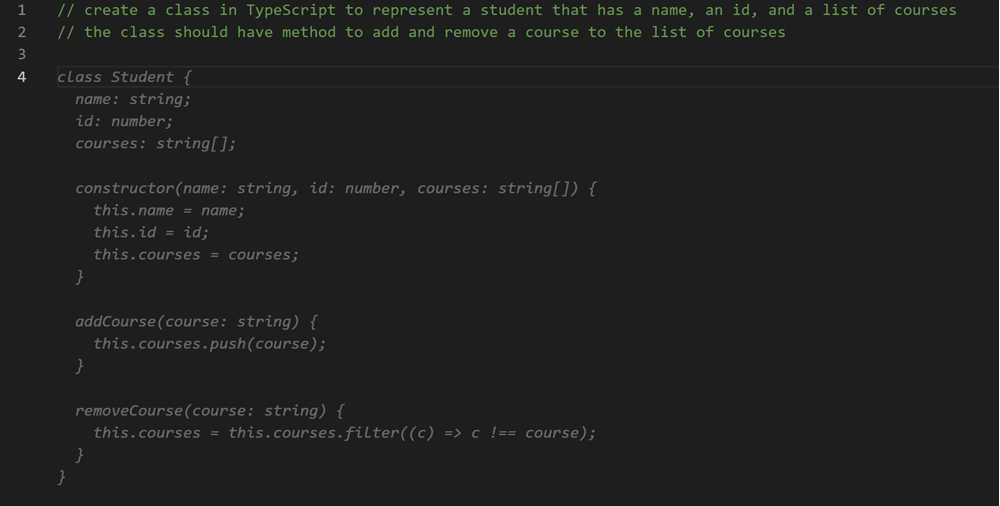
Instead of relying on Copilot to provide suggestions, you can provide hints about what code you expect by using code comments. For example, you could specify a type of algorithm or concept to use (for example, "use recursion" or "use a singleton pattern"), or which methods and properties to add to a class.
The following example shows how to instruct Copilot to create a class in TypeScript to represent a student, providing information about methods and properties:
Next edit suggestions
When one edit leads to another, next edit suggestions help you make the related changes. For example, after you add a parameter to a function, Copilot can suggest updates to code that uses it. Suggestions can appear at your cursor or elsewhere in the file, and can change a symbol, a line, or several lines.
To use next edit suggestions (Copilot NES), verify that github.copilot.nextEditSuggestions.enabled is enabled.
Navigate and accept edit suggestions
Press Tab to navigate to a suggested edit. Review the proposed change, then press Tab again to accept it or Escape to dismiss it.
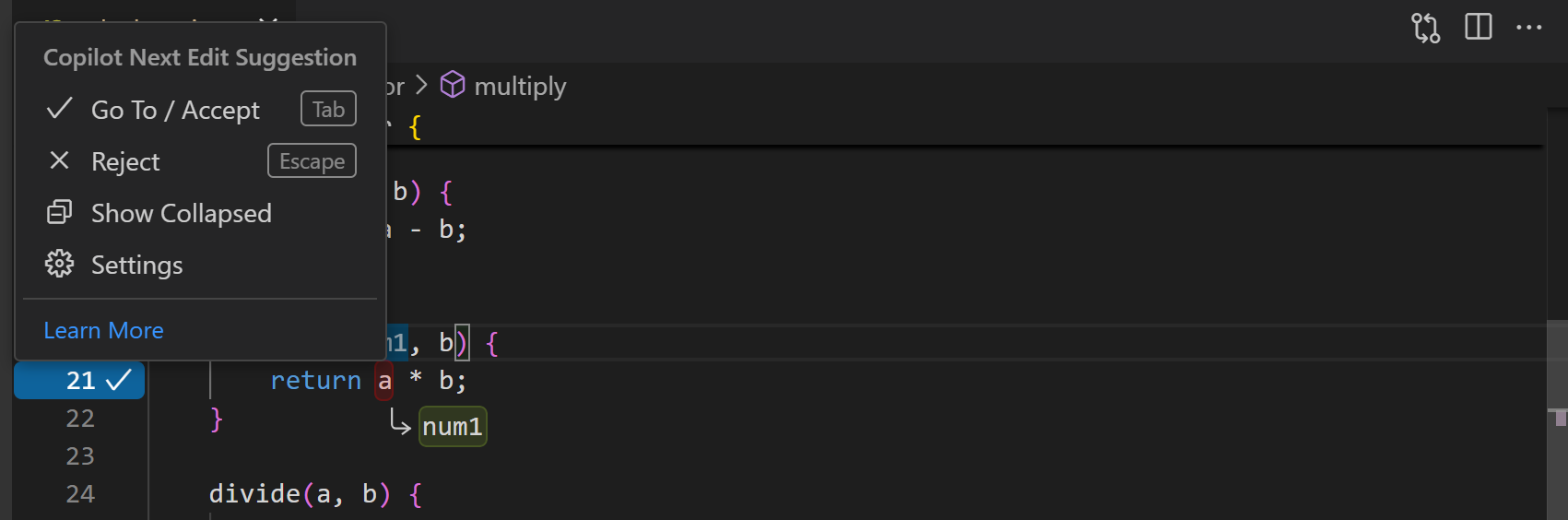
An arrow in the gutter indicates if there is an edit suggestion available. The arrow indicates where the next edit suggestion is located, relative to your current cursor position.
You can hover over the arrow to explore the edit suggestion menu, which includes keyboard shortcuts and settings configuration:
If you are a VS Code vim extension user, please use the latest version of the extension to avoid any conflicts in keybindings with NES.
Reduce distractions by edit suggestions
By default, edit suggestions are indicated by the gutter arrow and the code changes are shown in the editor. Enable editor.inlineSuggest.edits.showCollapsed to keep the suggested changes collapsed until you navigate to them. Alternatively, hover over the gutter arrow and select Show Collapsed from the menu.
Use cases for next edit suggestions
Catching and correcting mistakes
-
Copilot helps with simple mistakes like typos. It'll suggest fixes where letters are missing or swapped, like
cont x = 5orconts x = 5, which should've beenconst x = 5.
-
Copilot can also help with more challenging mistakes in logic, like an inverted ternary expression:

Or a comparison that should've used
&&instead of||: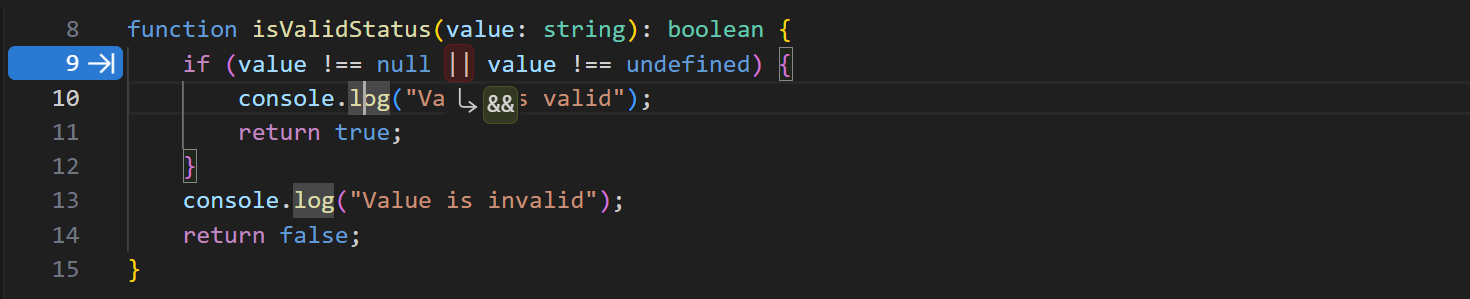
Changing intent
-
Copilot suggests changes to the rest of your code that match a new change in intent. For example, when changing a class from
PointtoPoint3D, Copilot will suggest to add azvariable to the class definition. After accepting the change, Copilot NES next recommends addingzto the distance calculation: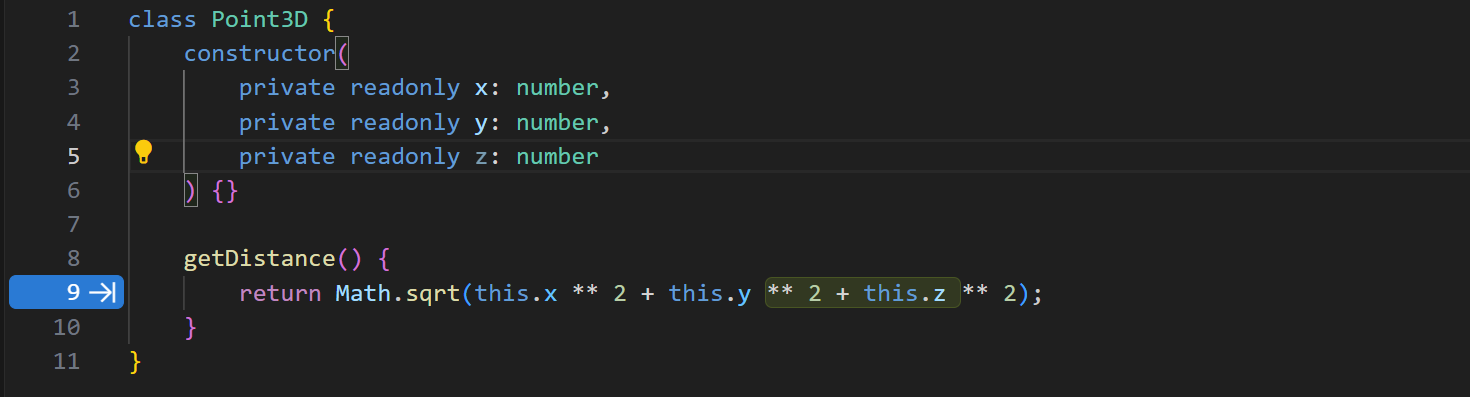
Refactoring
-
Rename a variable once in a file, and Copilot will suggest to update it everywhere else. If you use a new name or naming pattern, Copilot suggests to update subsequent code similarly.

-
Matching code style. After copy-pasting some code, Copilot will suggest how to adjust it to match the current code where the paste happened.
Enable or disable inline suggestions
You can enable or disable inline suggestions either for all languages or for specific languages only. To enable or disable inline suggestions, select the Copilot menu in the Status Bar, and then check or uncheck the options to enable or disable inline suggestions. The option to disable inline suggestions for a specific language is dependent on the language of the active editor.
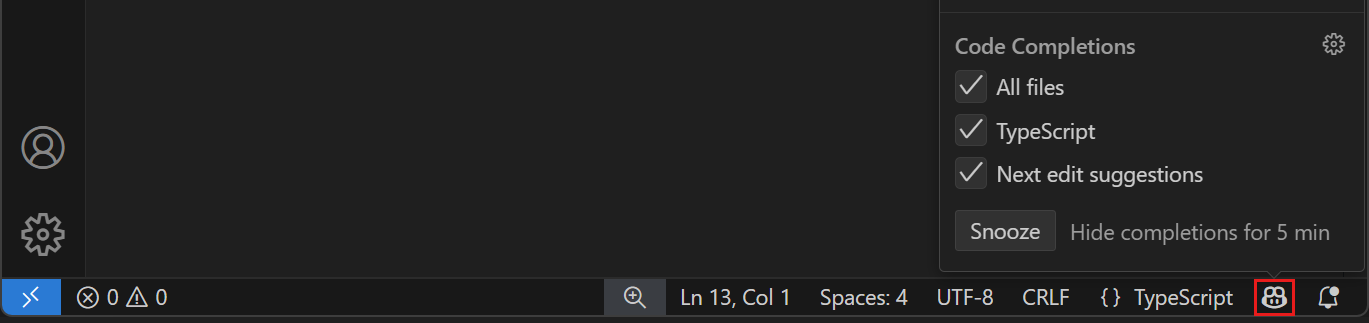
Alternatively, modify the
github.copilot.enable
setting in the Settings editor. Add an entry for each language you want to enable or disable inline suggestions for. To enable or disable inline suggestions for all languages, set the value for * to true or false.
To temporarily disable all inline suggestions in the editor, select the Copilot menu in the Status Bar, and then select the Snooze button to increment the snooze time by five minutes. To resume inline suggestions, select the Cancel Snooze button in the Copilot menu.
Alternatively, use the Snooze Inline Suggestions and Cancel Snooze Inline Suggestions commands in the Command Palette.
Use inline suggestions on metered connections
When VS Code treats your network connection as metered, GitHub Copilot does not start new automatic ghost text or next edit suggestion requests. Requests already in progress continue.
You can still request a suggestion explicitly. Run the Trigger Inline Suggestion command from the Command Palette.
This behavior applies only to the built-in Copilot provider. It does not change how local-only or third-party completion providers behave.
Change the AI model for suggestions
Different Large Language Models (LLMs) are trained on different types of data and might have different capabilities and strengths. Learn more about how to choose between different AI language models in VS Code.
To change the language model that is used for generating ghost text suggestions in the editor:
-
Select Configure Inline Suggestions... from the Chat menu in the VS Code title bar.
-
Select Change Completions Model..., and then select one of the models from the list.
The list of available models might vary and change over time. When no alternative models are available, the option to change the model is not available.
If you are a Copilot Business or Enterprise user, your Administrator needs to enable certain models for your organization by opting in to Editor Preview Features in the Copilot policy settings on GitHub.com.
Tips & tricks
Context
To give you relevant inline suggestions, Copilot looks at the current and open files in your editor to analyze the context and create appropriate suggestions. Having related files open in VS Code while using Copilot helps set this context and lets Copilot get a bigger picture of your project.
Guide suggestions with your code
Inline suggestions use the code around your cursor as context. Make your intent clear in the code you want to complete:
- Use descriptive names and comments. Name functions for the behavior they implement. Use a short module comment to explain its purpose, and focused function comments to specify inputs, expected results, or constraints that aren't clear from the name.
- Include the imports you intend to use. Existing imports help indicate the libraries and APIs that fit your project. For example, importing your project's logging library provides a more specific starting point than leaving the logging choice unspecified.
- Provide a representative example. Keep a small, correct example of the intended API or coding pattern in a related open file. This can help when working with an unfamiliar library version. Don't leave temporary sample code in production files.
- Keep patterns consistent and review the result. Suggestions can repeat mistakes in surrounding code as well as useful patterns. Check the proposed APIs, dependencies, and behavior before accepting a suggestion.
Combine suggestions with chat and agents
Inline suggestions are one way to work with AI, not a choice that locks you out of other approaches:
-
For a focused edit described in your own words, use inline chat.
-
To ask questions or work through a larger change beside your code, use the Chat view.
-
To assign tasks and manage agent sessions across projects, use the Agents window.
You can keep using inline suggestions while working with chat or agents. If you already have an agent conversation, see how to continue a supported session in another interface.
Settings
Ghost text suggestions settings
-
github.copilot.enable - enable or disable inline completions for all or specific languages.
-
editor.inlineSuggest.fontFamily - configure the font for the inline completions.
-
editor.inlineSuggest.showToolbar - enable or disable the toolbar that appears for inline completions.
-
editor.inlineSuggest.syntaxHighlightingEnabled - enable or disable syntax highlighting for inline completions.
Next edit suggestions settings
-
github.copilot.nextEditSuggestions.enabled - enable Copilot next edit suggestions (Copilot NES).
-
editor.inlineSuggest.edits.allowCodeShifting - configure if Copilot NES is able to shift your code to show a suggestion.
-
editor.inlineSuggest.edits.renderSideBySide - configure if Copilot NES can show larger suggestions side-by-side if possible, or if Copilot NES should always show larger suggestions below the relevant code.
- auto (default): show larger edit suggestions side-by-side if there is enough space in the viewport, otherwise the suggestions are shown below the relevant code.
- never: never show suggestions side-by-side, always show suggestions below the relevant code.
-
github.copilot.nextEditSuggestions.fixes - enable next edit suggestions based on diagnostics (squiggles). For example, missing imports.
-
editor.inlineSuggest.minShowDelay - Time in milliseconds to wait before showing inline suggestions. Default is
0.
Next steps
-
Discover the key features in the Quickstart.
-
Watch the videos in our VS Code Copilot Series on YouTube.